Managing windows effectively with AeroSpace
February 11, 2026
2 min read
Managing application windows has been a never-ending battle, especially with AI tools like Claude Code, Codex, and Cursor encouraging work across multiple projects simultaneously. I’ve relied on macOS built-in Spaces , but as the number of workspaces grows, switching and finding the right window becomes harder.
AeroSpace is a tiling window manager for macOS. I tried a similar tool called yabai before but wasn’t quite impressed.
AeroSpace works pretty much out of the box — windows snap into place without overlapping. It implements virtual workspaces in a faster and more predictable way than native Spaces. For example, workspaces are mapped to shortcuts like Option + 1 or Option + A, making switching between them nearly instant.
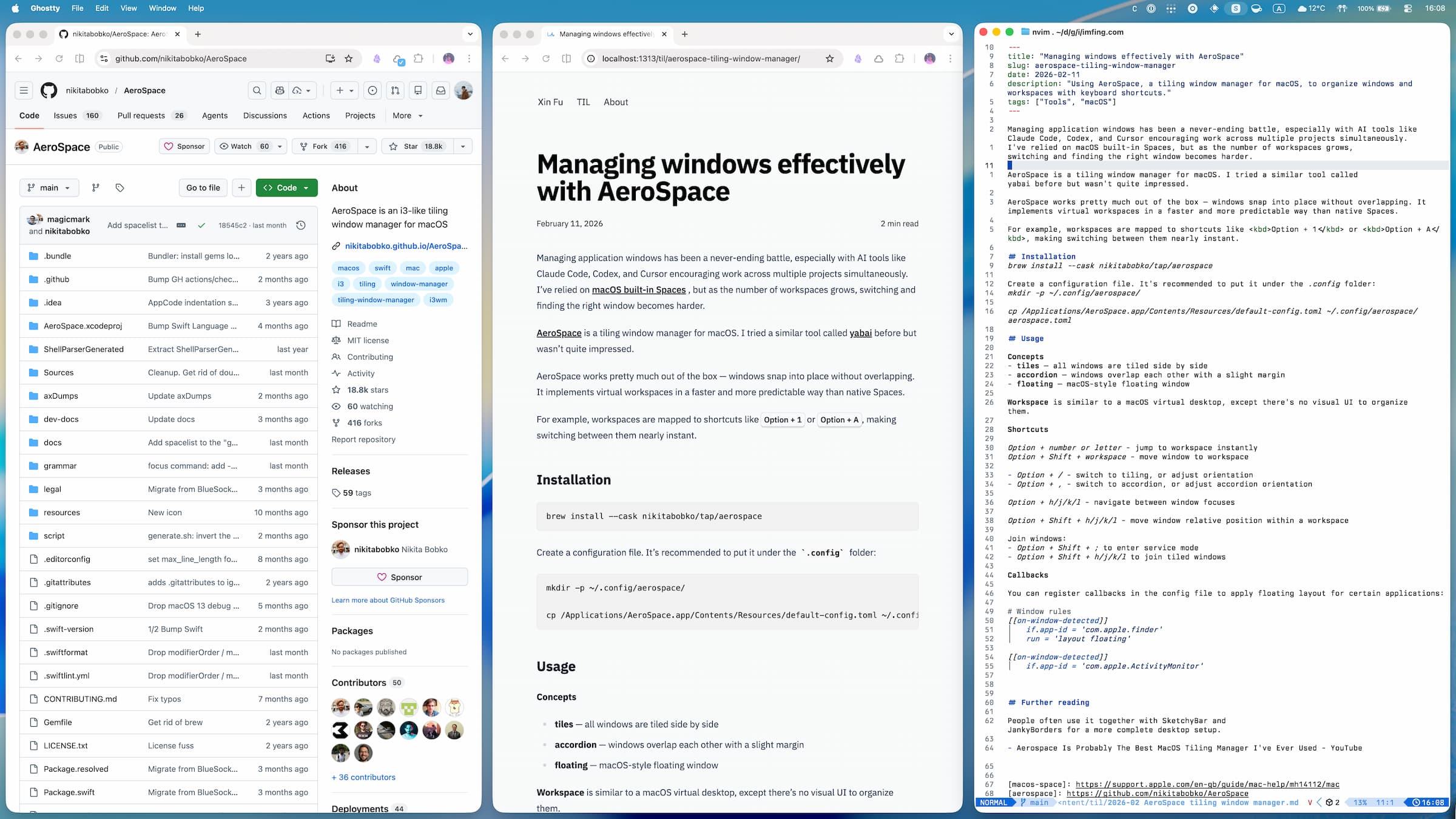
Below are my notes on installing and using AeroSpace.
Installation
brew install --cask nikitabobko/tap/aerospace
Create a configuration file. It’s recommended to put it under the ~/.config folder:
mkdir -p ~/.config/aerospace/

cp /Applications/AeroSpace.app/Contents/Resources/default-config.toml ~/.config/aerospace/aerospace.toml
Usage
Concepts
- tiles — all windows are tiled side by side
- accordion — windows overlap each other with a slight margin
- floating — macOS-style floating window
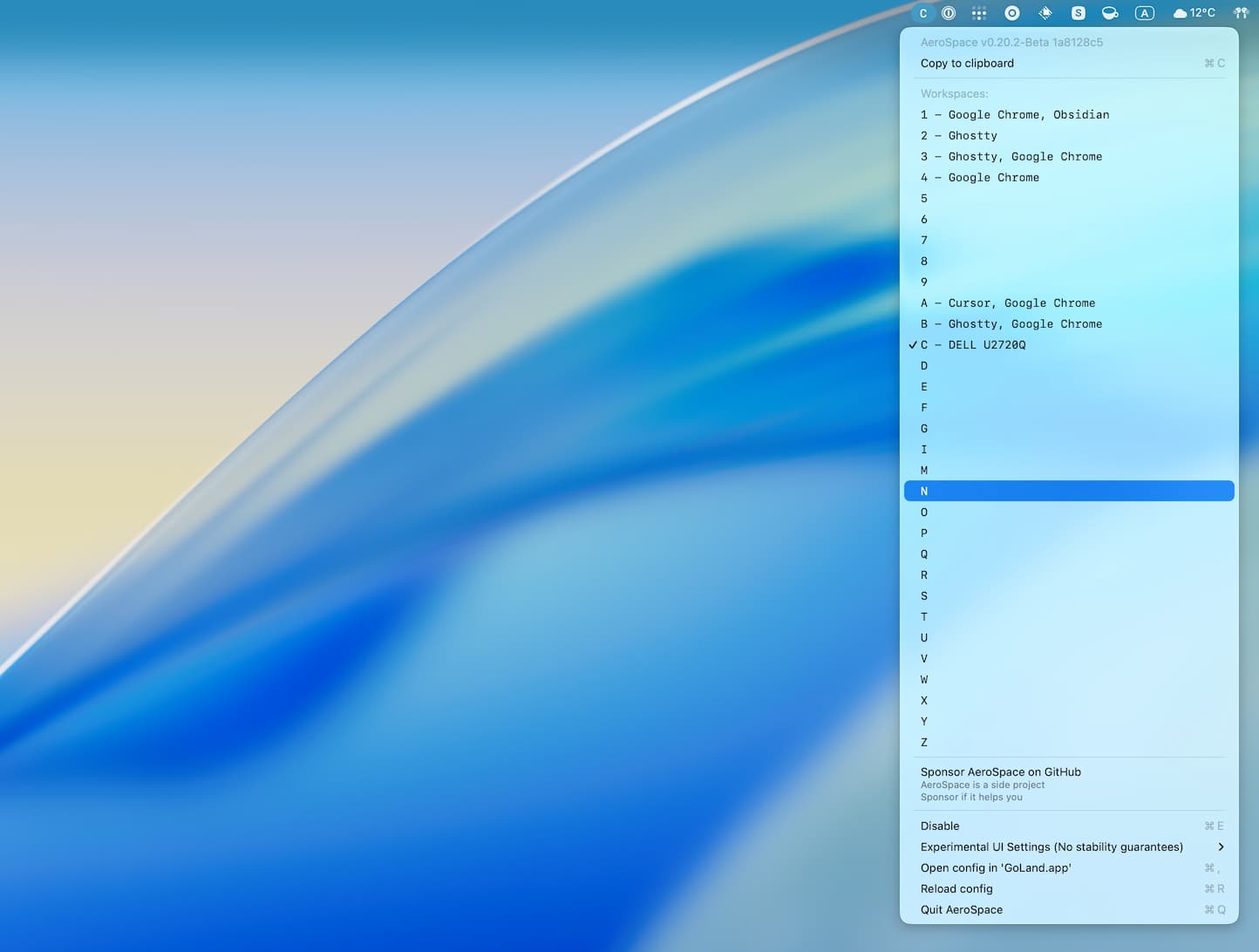
Workspace is similar to a macOS virtual desktop, except there’s no visual UI to organize them. Clicking the menubar icon shows all workspaces and which applications are in each one.
Shortcuts
Workspace navigation:
Option + number or letter - jump to workspace instantly
Option + Shift + number or letter - move window to workspace
Within a workspace:
- Option + / - switch to tiling, or adjust orientation
- Option + , - switch to accordion, or adjust accordion orientation
- Option + h/j/k/l - navigate between windows
- Option + Shift + h/j/k/l - move window position within a workspace
Toggle floating:
- Option + Shift + ; to enter service mode
- F to toggle floating on the focused window
Join windows:
- Option + Shift + ; to enter service mode
- Option + Shift + h/j/k/l to join tiled windows
Callbacks
You can register callbacks in the config file to apply floating layout for certain applications:
# Window rules
[[on-window-detected]]
    if.app-id = 'com.apple.finder'
    run = 'layout floating'

[[on-window-detected]]
    if.app-id = 'com.apple.ActivityMonitor'
    run = 'layout floating'
Further reading
People often use it together with SketchyBar and JankyBorders for a more complete desktop setup.